
You need one photo and the fixed Roadster ai stunt template. There is no prompt to write. Your photo supplies the subject's appearance; the reference supplies the climb, flip, jet landing and closing shot.
Before buying credits, watch that complete reference. It tells you much more than a still image about the scene you are choosing.
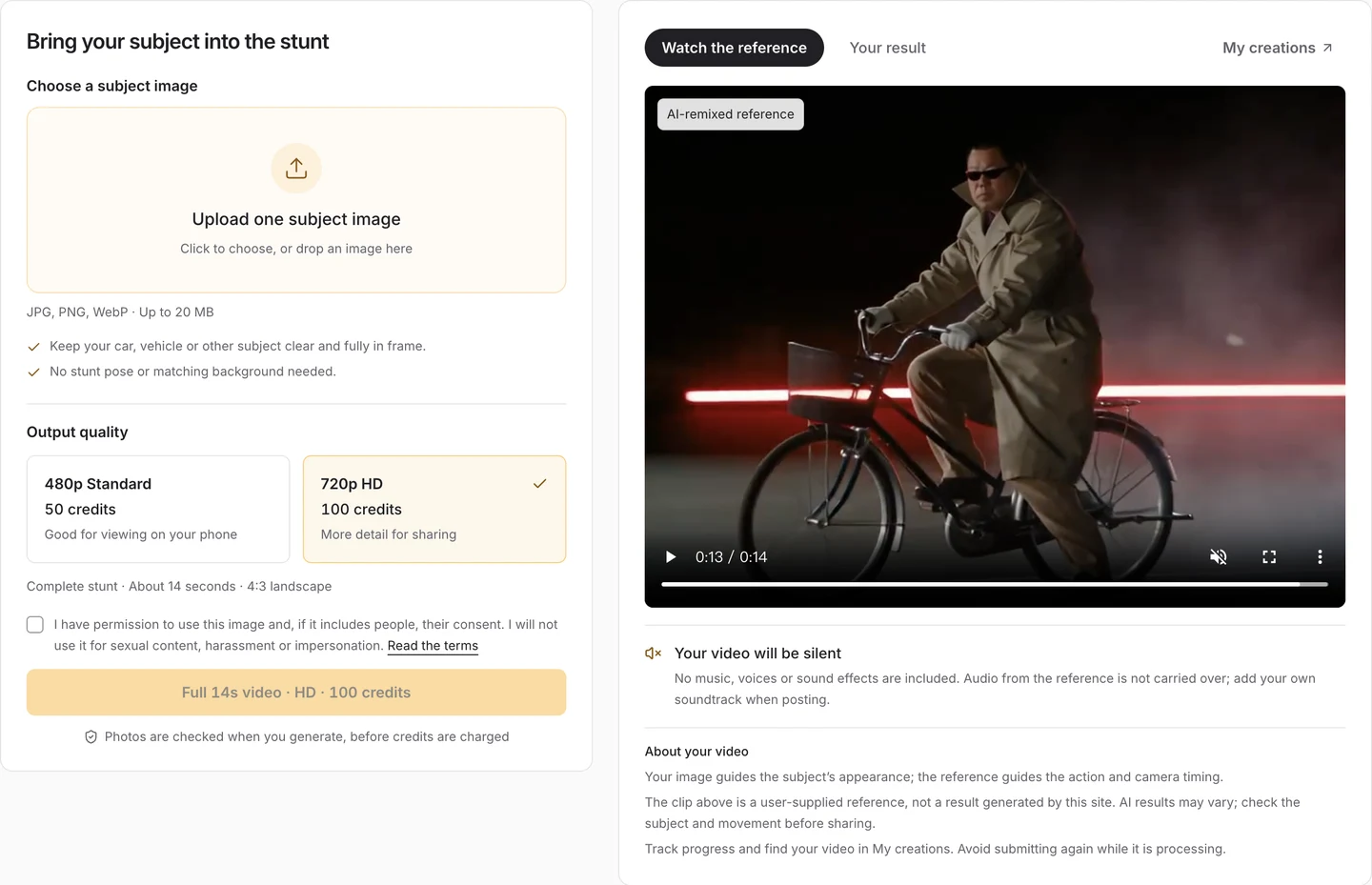
The workspace has two parts: your photo and quality settings on the left, the reference or your result on the right. The rider shown here belongs to the built-in Roadster AI reference.
What you need before starting
Use a sharp image of the car, vehicle or other subject you want in the scene. Keep the full bodywork and wheels visible for a car. If the image includes a person, show their full body and outfit and make sure you have their permission. The background does not need to match the stunt.
The upload accepts one JPG, PNG or WebP, up to 20 MB. A close crop leaves parts of the subject unspecified: a missing wheel for a car, or the outfit and feet for a person. The photo guide explains that choice in more detail.
You also need an account and enough credits for the selected quality. The Roadster AI-generated reference and user-generated sample videos can be watched before purchasing; free generated previews are not currently offered.
1. Watch the reference, including the ending
Open the Roadster ai workspace and play Watch the reference. Notice the change from the overhead climb to the aerial action and the final side view. Those camera changes explain why clear identifying details and a complete silhouette matter.
The reference is a Roadster AI-generated example of the target effect. It is not your output, and it is not a promise that every frame of your generation will match it.
2. Choose your photo
Select Upload one subject image, or drop an image into that area. Check the chosen image before continuing: is the intended car, vehicle or other subject clear, and are the important parts still inside the frame?
There is no need to photograph a ramp, imitate the flip or write a description of the movement. The current template already supplies the action. It does not accept a different reference video or a custom prompt.
Sign in when prompted to continue. Confirm that you have permission to use the image and, if people appear, their consent before submitting the generation.
3. Choose quality and check the cost
Switching between the two quality options changes the displayed credit cost. In our interface check, selecting Standard changed the generation button from HD · 100 credits to SD · 50 credits. The duration and aspect ratio stayed fixed.
| Setting | Standard | HD |
|---|---|---|
| Output quality | 480p | 720p |
| Credits per generation | 50 | 100 |
| Duration | About 14 seconds | About 14 seconds |
| Frame | 4:3 landscape | 4:3 landscape |
| Sound | Silent | Silent |
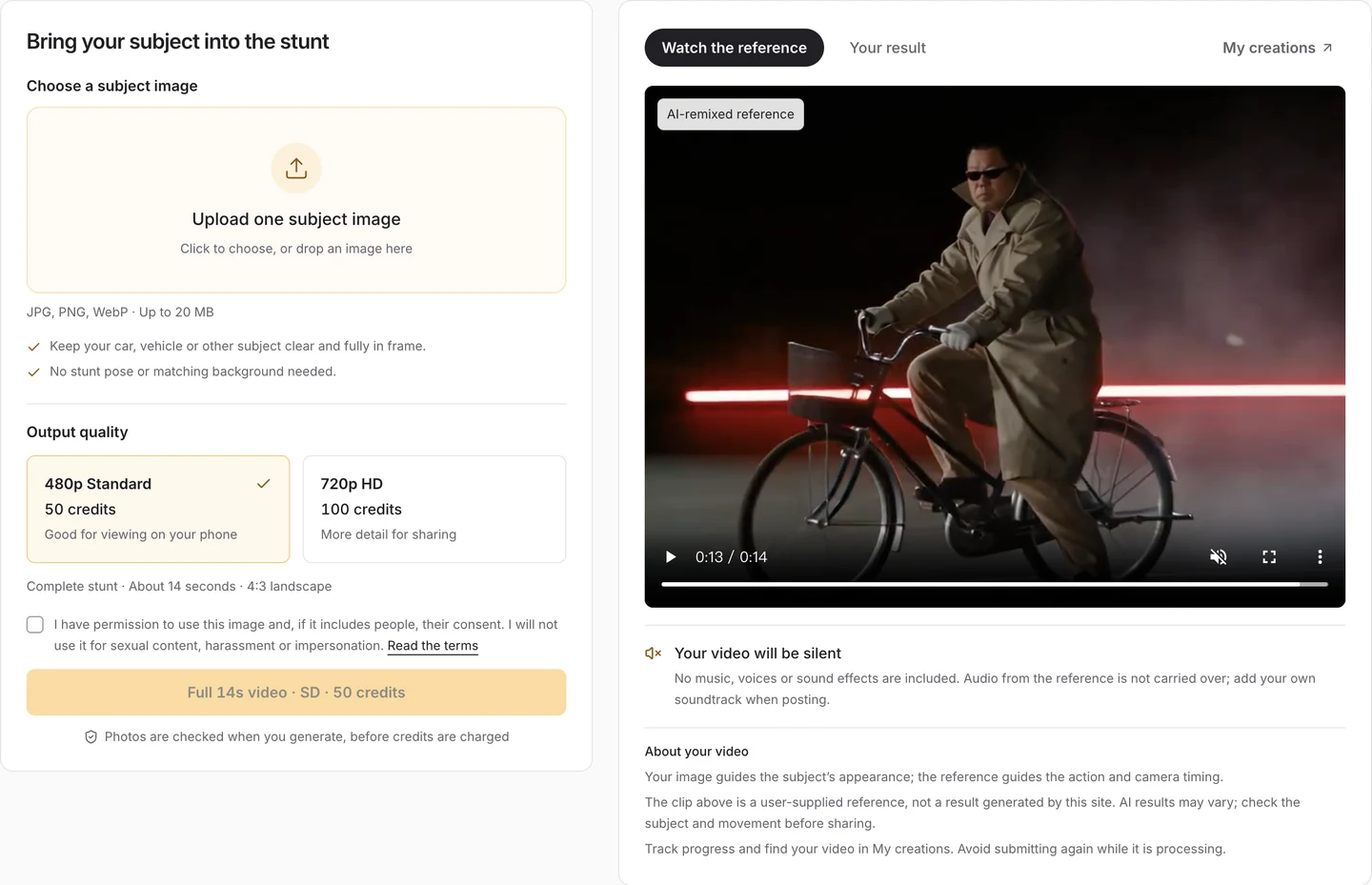
Standard selected in the real interface. The button shows the cost before submission; changing quality does not shorten the stunt.
Choose Standard if you want the lower-credit option. Choose HD if you need the higher output resolution. We have not run a controlled quality comparison for this guide, so this is a resolution and cost choice, not a claim that HD fixes identity or motion errors. Current pack prices are on the pricing page.
4. Generate, then keep the existing task
Review the photo, quality and permission confirmation, then use the generation button. Once submitted, follow the task in the result panel or My creations.
If the browser loses connection or the wait times out, open My creations before trying again. A timeout does not establish that generation failed. Submitting a new task can create another generation; it is not a way to resume the first one.
Credits are returned for a task confirmed as failed. The site does not promise a fixed completion time, and this guide does not report a measured generation speed.
5. Review the whole clip before downloading
Start with the final shot, where the subject is easier to inspect. For a car, compare the body shape, paint and wheels; for a person, compare the face and clothing. Then replay the climb, flip and landing. Check the wheels and bodywork, any hands and feet, and the shadow and whether the subject changes unexpectedly between shots.
A good final frame alone is not enough. The useful result is the complete sequence you would be comfortable sharing. Use the result-checking guide if something looks wrong.
Download the reviewed clip. New generations are silent, even when the built-in reference or a user-generated sample has audio. For music, landing effects or a vertical social edit, continue with the sound and sharing guide.
What this walkthrough verifies
The screenshots show the actual workspace. We checked the quality controls, displayed credit costs and the built-in Roadster AI reference. We did not submit a new paid generation or measure output success rates for this article. Those limits matter when deciding how much to spend on a first attempt.