
Your Roadster ai download is about 14 seconds, 4:3 landscape and silent. To make a vertical edit with music or effects, download the finished clip and continue in a separate video editor.
Keep a copy of the original. It gives you a clean starting point if a crop, caption or sound effect makes the edit worse.
Begin with the whole landscape clip
Play the downloaded file once before editing. Check the subject, flip and landing, then confirm whether the file has sound. New generations from this tool are silent; an audible built-in reference or user-generated sample does not mean that audio comes with your download.
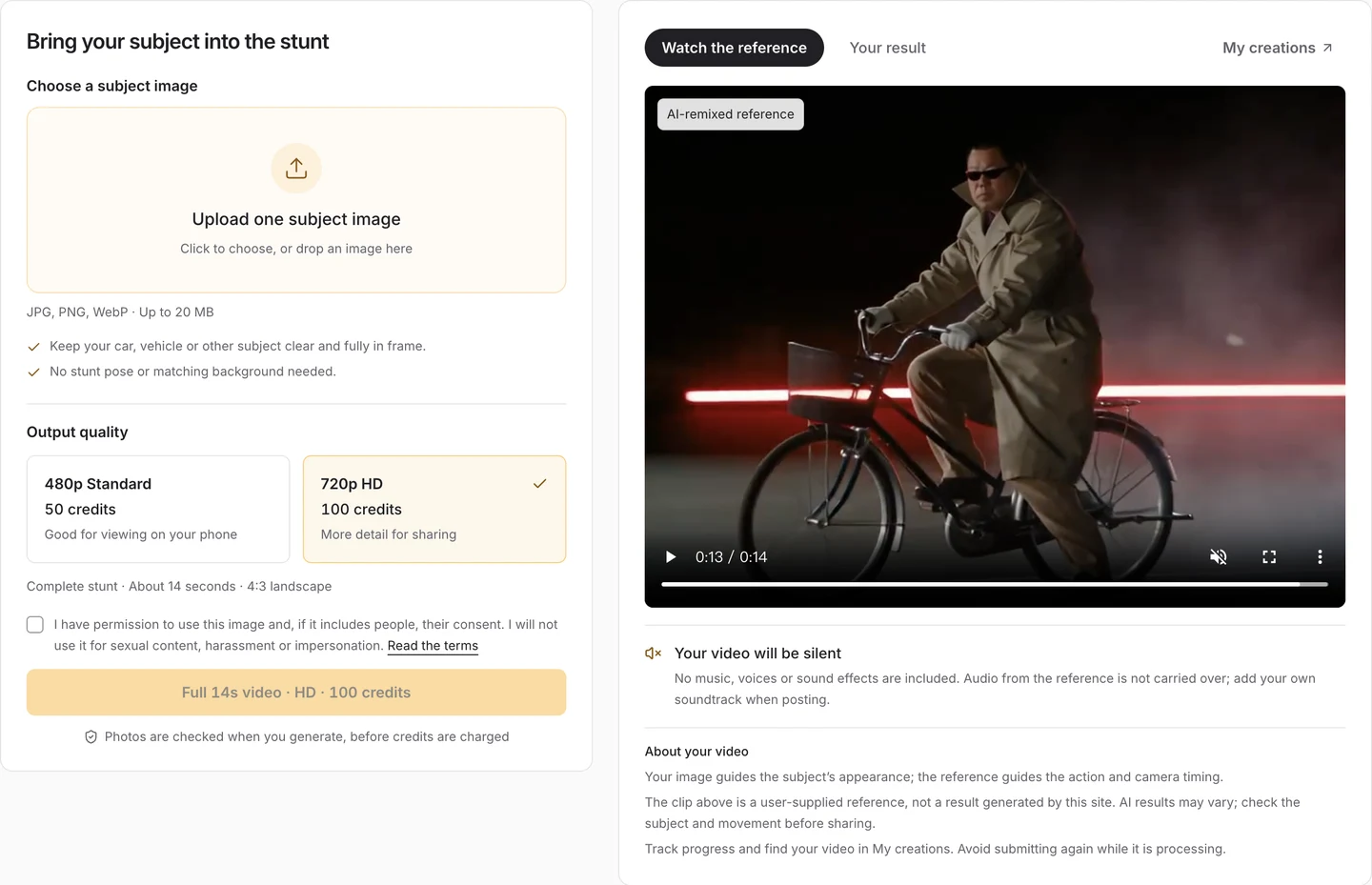
The actual workspace includes a silent-output notice below the preview. Sound and vertical formatting are editing steps after generation.
You do not need another generation simply to add music. That is an editing task. If the appearance or motion is wrong, review the result-checking guide before spending time polishing it.
Fit the shot into a vertical canvas first
Create a 9:16 project in your chosen editor and import the landscape clip. Start with Fit, or the equivalent option that keeps the entire frame visible. Leave a plain background above and below the clip, then decide whether those areas need a title or caption.
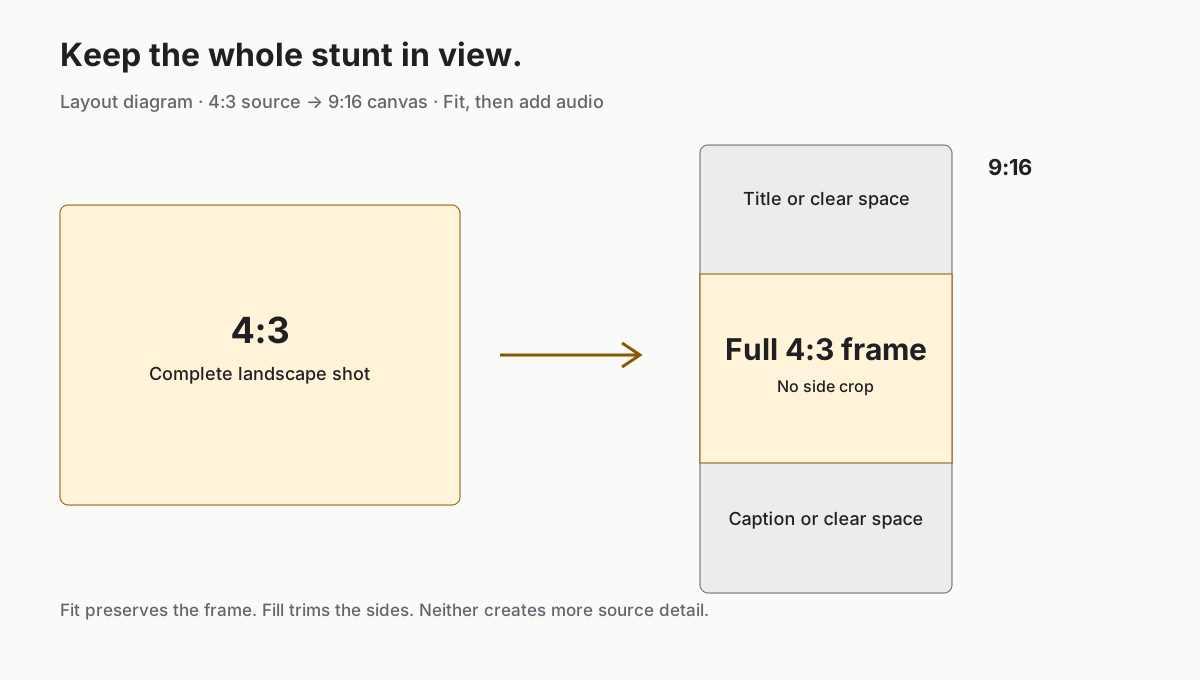
Our layout diagram, not an editor screenshot. Fitting preserves the full frame; filling a vertical canvas crops the sides.
This matters for a moving stunt. A crop that keeps the face in the closing shot may cut off the subject during the flip. Filling a 9:16 frame with a 4:3 source at the same height retains only about 42% of the original width. That is geometry, not a quality setting.
If you prefer a full-height crop, scrub through the entire clip and adjust the framing for each section where your editor supports it. Check the wheels, the airborne path and the landing area rather than centring only the face.
YouTube currently categorises eligible square or vertical uploads of up to three minutes as Shorts. The 14-second duration fits that limit, but the original 4:3 landscape shape does not meet that shape requirement. See YouTube's official Shorts guidance. A 9:16 edit is a practical format for sharing across vertical feeds; check each platform's upload preview before publishing.
Add effects where the action actually happens
A simple sound pass can use a movement sound for the climb, a short whoosh for the airborne section and a landing sound when the subject makes contact with the ground. Find those moments in your own file. Do not assume that a reference's timestamp is exact for every generated result.
Keep the landing effect aligned with visible contact. An early impact sound makes the subject seem to hit an invisible surface; a late one separates the sound from the event. Listen through once with your eyes off the timeline, then watch again at normal speed.
Music is optional. If you add it, keep the effects audible and avoid piling a different sound onto every movement. Use audio you own or have permission to publish, including the relevant platform library where appropriate.
For a documented editor workflow, Microsoft's Clipchamp editing guide explains importing media and adding stock audio. Its editing-tools guide covers aspect ratio and fit/fill. The steps here apply broadly; we did not run a separate Clipchamp editing session for this article.
Export, then inspect the exported file
A 1080 × 1920 canvas is a familiar 9:16 editing size, but exporting a 480p or 720p source at that size does not restore missing detail. Choose an export your editor supports without confusing canvas size with source resolution.
Open the exported file outside the editor. Confirm that the flip is in frame, the sound is present and aligned, and captions do not cover the subject. Keep the complete sequence if removing the start or end makes the action difficult to follow.
Before posting to Shorts, TikTok or Reels, check the platform's preview for its own text and controls. Keep important captions away from places that preview visibly covers. Describe the clip as an AI creation rather than a real stunt recording.
A short publishing check
- The full action remains visible after reframing.
- The file plays with the intended audio, including on your phone.
- The caption explains the clip without covering the flip or face.
- You have kept the original landscape download.
This guide combines the current Roadster ai output specifications, an original framing diagram and the linked official editing and YouTube references. It does not report a live upload test to all three platforms. If you still need the base clip, start with the Roadster ai walkthrough.