
Before generating again, name the problem. A different face, a bending wheel and a task that is still processing need different responses. Buying another run before you know which one happened gives you little to learn from.
This guide uses frames from the built-in Roadster AI reference to show where to look. They are checkpoints, not customer failure examples or a claim that a particular adjustment has been proven to fix every run.
First, make sure you have a finished result
A waiting timeout is a status problem, not an image-quality problem. Open My creations and check the existing task before submitting a new one.
If the task is confirmed failed, credits are returned. If it is still processing or unresolved, keep following that task. Contact support if you cannot establish what happened. A new generation is a separate attempt, not a continuation of the old one.
Once you have a completed clip, watch it at normal speed before inspecting individual frames. That first pass tells you whether a defect is visible in ordinary viewing or only when paused.
Check the car or person in the ending
The closing view provides more useful appearance information than the distant overhead climb. Compare it with the photo you uploaded, not with the original subject in the reference. For a car, inspect the body shape, paint, headlights and wheels. A changed badge or plate is a detail to check, not a reason to assume the rest of the car stayed consistent.
For a person, look at the face outline, hair, clothing colour and large items. If the original photo hides the face or crops the outfit, a clearer full-body image is a reasonable next input. There is no custom-prompt field here for adding instructions to preserve an unseen jacket or shoe.
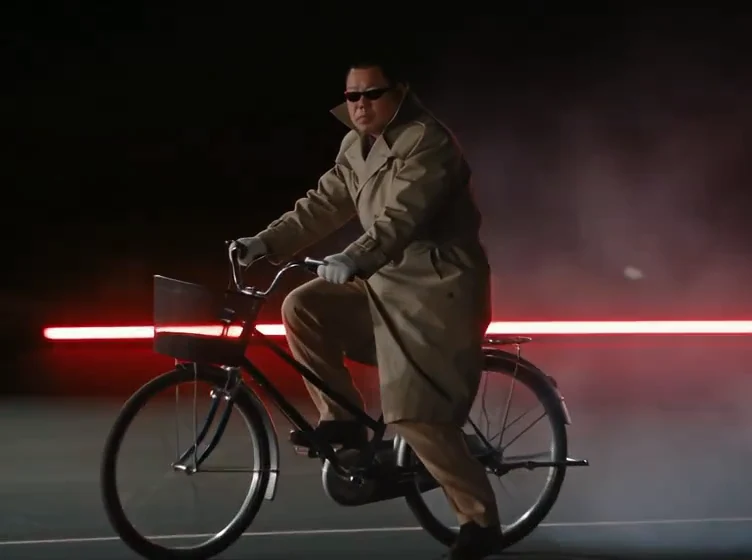
The reference at about 13.5 seconds. Use the comparable closing view in your own output to check appearance. The pictured rider is not a test user generated for this article.
Do not assume that a higher resolution will repair the wrong face. Standard and HD specify different output resolutions; neither is a guarantee of identity consistency.
Replay the flip for structural changes
The airborne section is where several checks happen at once: the subject rotates, visible surfaces change and hands or feet may cross the body. Watch for an extra limb, a disappearing object or a vehicle that changes shape between frames.
Pause just before and after the suspicious moment. If a wheel seems to vanish, check whether it is briefly edge-on or covered by the rider before calling it an error. A continuous playback is useful for distinguishing a camera-angle change from an actual structural change.
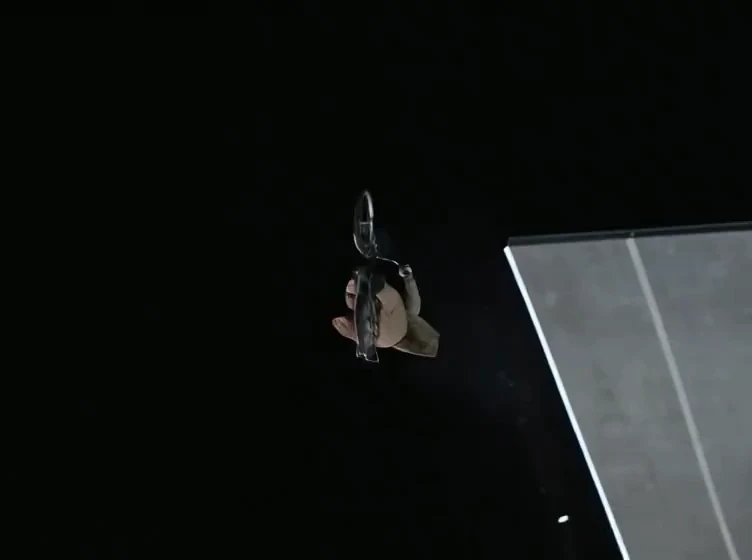
A reference frame at about nine seconds. Rotation and overlap can make parts hard to see; inspect the frames on either side as well.
If the uploaded photo cuts off the vehicle or hides a contact point, choose a more complete photo. This removes a visible ambiguity in the input. It does not guarantee that the next flip will be correct.
Watch through the smoke and landing
Smoke can hide a transition rather than resolve it. Follow the subject into the cloud and back out: does the outfit remain the same, does the vehicle reappear in a sensible position, and does the shadow follow the subject?
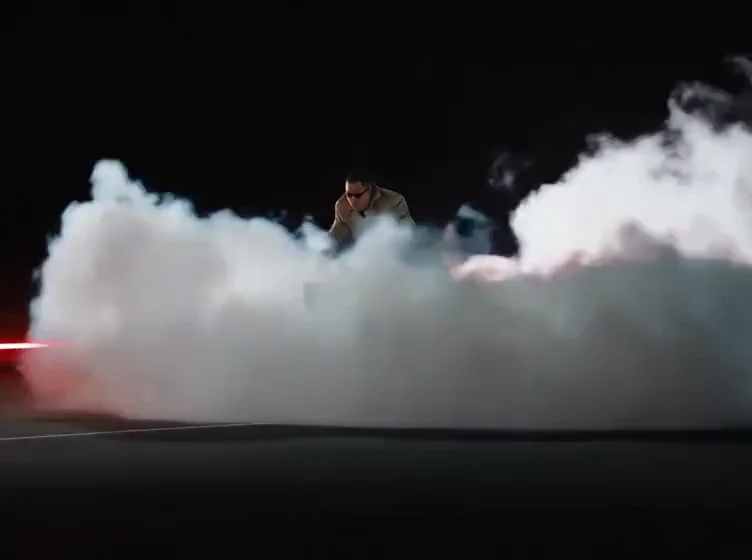
The built-in Roadster AI reference at about 11.3 seconds. Check the motion on both sides of an obscured landing, rather than judging the smoke frame on its own.
If you plan a vertical edit, keep the landscape original while reviewing. A crop can hide the wheel or landing area and introduce a second problem that was not present in the generated clip.
Choose one next action
| What you notice | Check first | A sensible next step |
|---|---|---|
| Car shape, face or outfit differs | Visibility in the uploaded photo | Try a clearer, complete view of the subject |
| Object or vehicle changes | Cropped or hidden parts in the input | Use a more complete view |
| A moment looks wrong | Adjacent frames and normal-speed playback | Decide whether the defect affects the intended use |
| Sound is missing | Current output specification | Add audio after downloading; new generations are silent |
| Subject is cut off after editing | Original landscape clip | Fit the whole clip into the vertical canvas |
| No completed clip appears | Existing task in My creations | Resolve the task status before generating again |
If you do try another generation, keep the earlier clip and record which photo and quality you used. Change one input at a time so that the comparison means something. There is no measured repair rate behind the suggestions in this guide, and confirmed task failure is different from a completed result you dislike.
For photo preparation, see the photo guide. For a clip you are happy with, continue to sound and social formatting.