
Roadster ai uses a prepared stunt reference. You supply a photo of the subject you want to put into that sequence. That makes the workflow short, but it also sets a clear boundary: this workspace is for the built-in stunt, not for directing an unrelated scene.
If you arrived looking for a “Roadster ai prompt,” you do not need to paste one here. The template already contains the movement instructions.
Start by separating the two inputs
The reference and your photo do different jobs. Keeping those roles separate makes it easier to decide whether the template fits your idea.
| Part of the video | Main guide | What that means for you |
|---|---|---|
| Subject appearance | Your photo | Make the complete subject and its main features clear |
| Clothing and belongings | Your photo | Include what you want the subject to wear or carry |
| Vehicle, if present | Your photo | Show it completely enough to understand |
| Scene and lighting | Fixed reference | There is no background picker in this workspace |
| Camera and action timing | Fixed reference | You do not choose a new shot list or stunt |
| Output quality | Your selection | 480p or 720p; duration and frame stay fixed |
These are the intended roles of the inputs. A generated result can still change details or misinterpret motion.
The built-in Roadster AI reference, muted here. Watch the full sequence to understand the camera and timing. It is the target reference, not an output produced for this article.
What happens when the photo includes a vehicle?
The generation instructions use the complete subject and vehicle from the photo in place of the original subject and vehicle. If there is no vehicle in the photo, the instructions ask for the original vehicle to be removed and for movement suited to the subject's own structure.
That is why a vehicle does not need to be the same bicycle shown in the reference. It is also why “use my clothes” begins with the uploaded image, not an additional text box.
However, an instruction to keep something is not proof that it will survive every turn. Check small objects, wheel shapes, clothing and contact points in the finished clip.
What the three site samples show
The homepage includes a car, a cycling subject and a carriage in related stunt clips. They make the idea easier to understand: the lead changes while the ramp-and-landing setup remains recognisable.
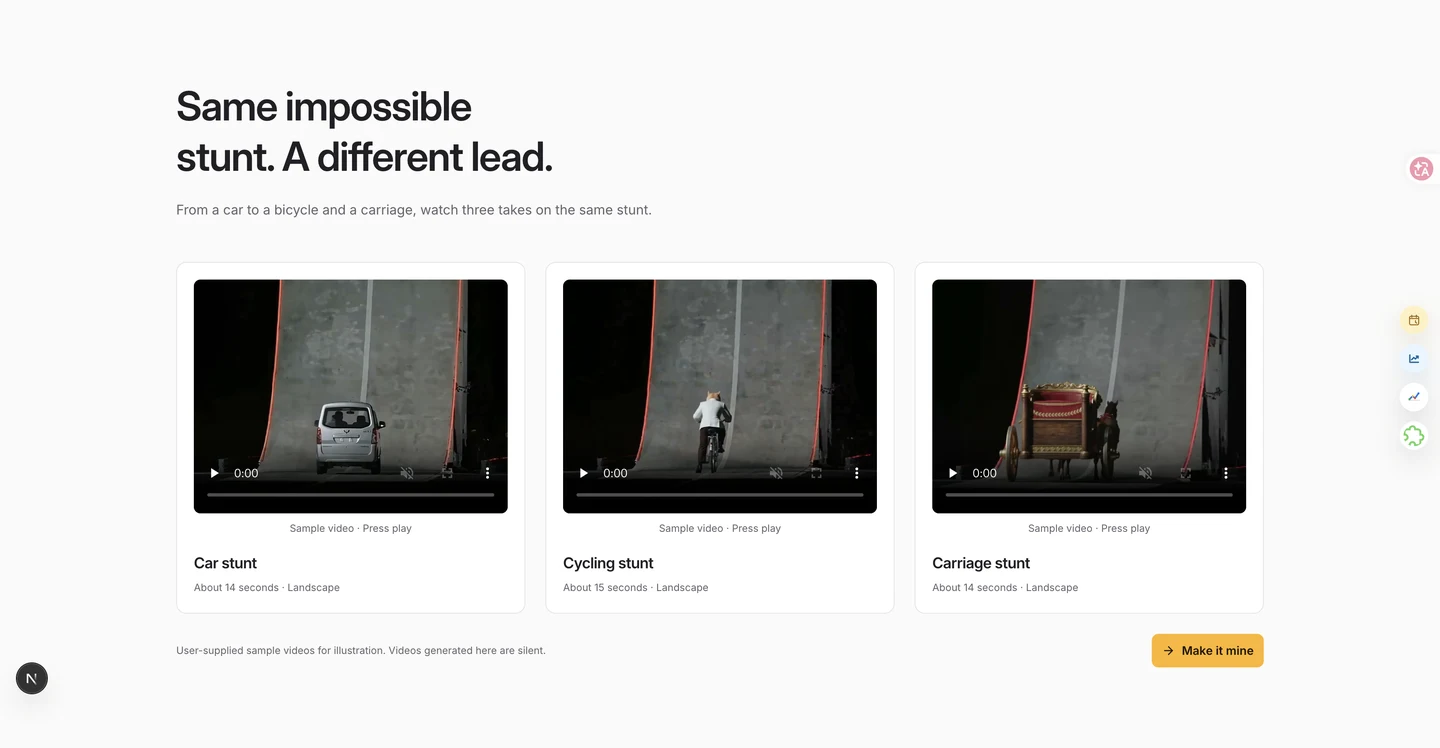
The actual site gallery. These are user-generated Roadster AI clips. They are not a same-input comparison, a measured success rate or evidence that this article generated all three through the current service.
The original input photos and settings for those user-generated clips are not published here. Their lengths also vary slightly. Use them to understand the creative direction; use the current workspace's approximately 14-second specification when planning a new generation.
What can you change in the workspace?
You can choose your photo and select Standard 480p or HD 720p. The complete output is about 14 seconds, 4:3 landscape and silent. There is no custom reference upload, prompt editor, background selector or vertical-output setting in this template.
If your main requirement is a different scene, a different camera move or an exact frame-by-frame replacement, those requirements go beyond the controls offered here. Knowing that before purchasing is more useful than trying to force the wrong workflow.
How close should you expect the result to be?
Think in terms of a recognisable sequence, rather than identical pixels. The reference guides the climb, flip, landing and closing view. Your result still needs a review for appearance and motion continuity: car shape and wheels, or a person's face and outfit, depending on the input.
A practical check is to watch once at normal speed, then pause around the flip and the closing face view. If a change is visible only in a paused frame, judge how much it matters for your intended use. If the subject changes obviously during playback, that is a stronger reason to try a clearer photo or reconsider the result.
For the actual upload steps, use the complete walkthrough. For an existing clip, use the result-checking guide. The table and screenshots here describe the current template; they do not establish a fresh generation benchmark.